GWrite: A Nice HTML5 Editor For Linux Mint / Ubuntu
January 23, 2012
Here’s how to install and use GWrite: a nice HTML5 editor for Linux Mint / Ubuntu –
1. Issue the following command at the terminal –
sudo apt-get install gwrite


2. After the installation is complete, click on ‘Menu>Accessories>GWrite’ to start the application.

3. You can now start designing your web page in WYSIWYG mode.

4. If you want to edit the HTML5 code, press ‘Ctrl’ + ‘U’ to go to HTML mode.


5. After you are done editing your code, you can switch back to WYSIWYG mode by pressing press ‘Ctrl’ + ‘U’.
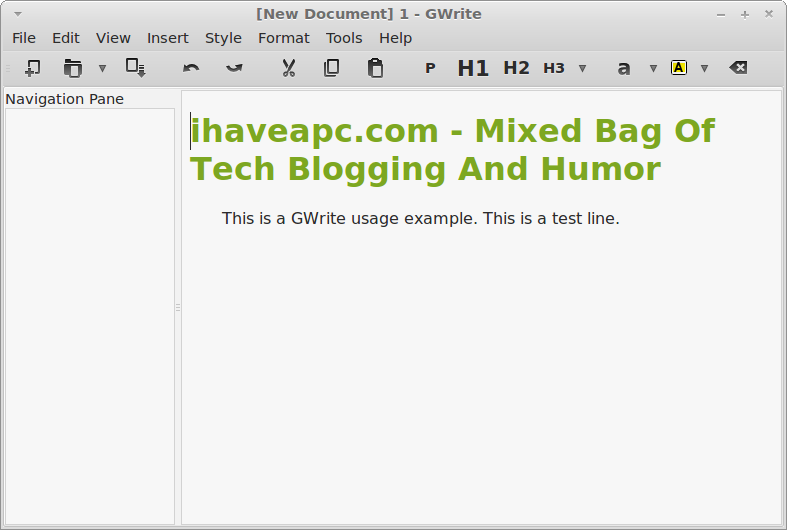
GWrite also allows you insert pictures, links, tables, horizontal rules, equations into the page and supports standard styles and formatting. Enjoy HTML5 editing with GWrite!