GnoMenu: An Alternate Menu For Gnome Desktop In Linux Mint/Ubuntu
March 11, 2011
Here’s how to install and use gnomenu, an alternate menu for gnome desktop in Linux Mint/Ubuntu:
1. Issue the following command at the terminal –
sudo apt-get install gnomenu


2. After the installation is complete, right click on the gnome taskbar and select ‘Add to Panel…’.
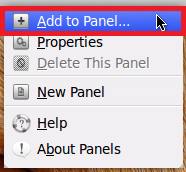
3. Scroll down, select ‘GnoMenu’ widget and click ‘Add’.

Click ‘Close’ when done.
4. A ‘GnoMenu Settings’ window will pop up. You can customize the buttons, icons and select a sound theme if you want. Click ‘OK’ when done.

Now, click ‘Yes’ when you are prompted for restarting GnoMenu.

5. Enjoy GnoMenu.


